Cellophane Crate holds sample packs and stem slices. Bring their timing together, control the tempo, and play them together. Make them sing.
A source gives you samples. A window selects a region. A Slice groups windows from the same pool.
01
Source
Where the sounds come from.Start with individual samples, a sample pack, or a song separated into stems. Each gives you a pool of samples to work with.
02
Window
The part you want to play.A window selects a region of one sample: a short phrase, a loop, or the entire sample.
03
Slice
Windows that belong together.A Slice is a set of windows from the same pool of samples—even just one window. It can be a focused song section or a loose collection of sounds. There is no four-part requirement.
ONE MODEL. TWO COMMON STARTING POINTS.
A
Song-based material
A section of a song—or a new combination. Separate a song into stems, then choose windows across those samples. A Slice can follow a verse, a chorus, or whatever sounds good together.
B
Sample-pack material
Prepared sounds, freely organized. Build a pack from short loops, field recordings, external instrument recordings, or any samples you like. Arrange them your way, then choose windows from that pool. Stem-type tags are optional.
Set the timing, choose how each sound plays, and make them sing together.
Cel: a row in the bench, or a specific set of slice windows grouped together. Just ’cause it fits.
Drag up or down to change the focused part’s level. Double-tap a fader to mute it; double-tap again to bring it back.
4 KEEP THE MOMENT
A Set saves your editable performance. A Recording keeps the audio you played.
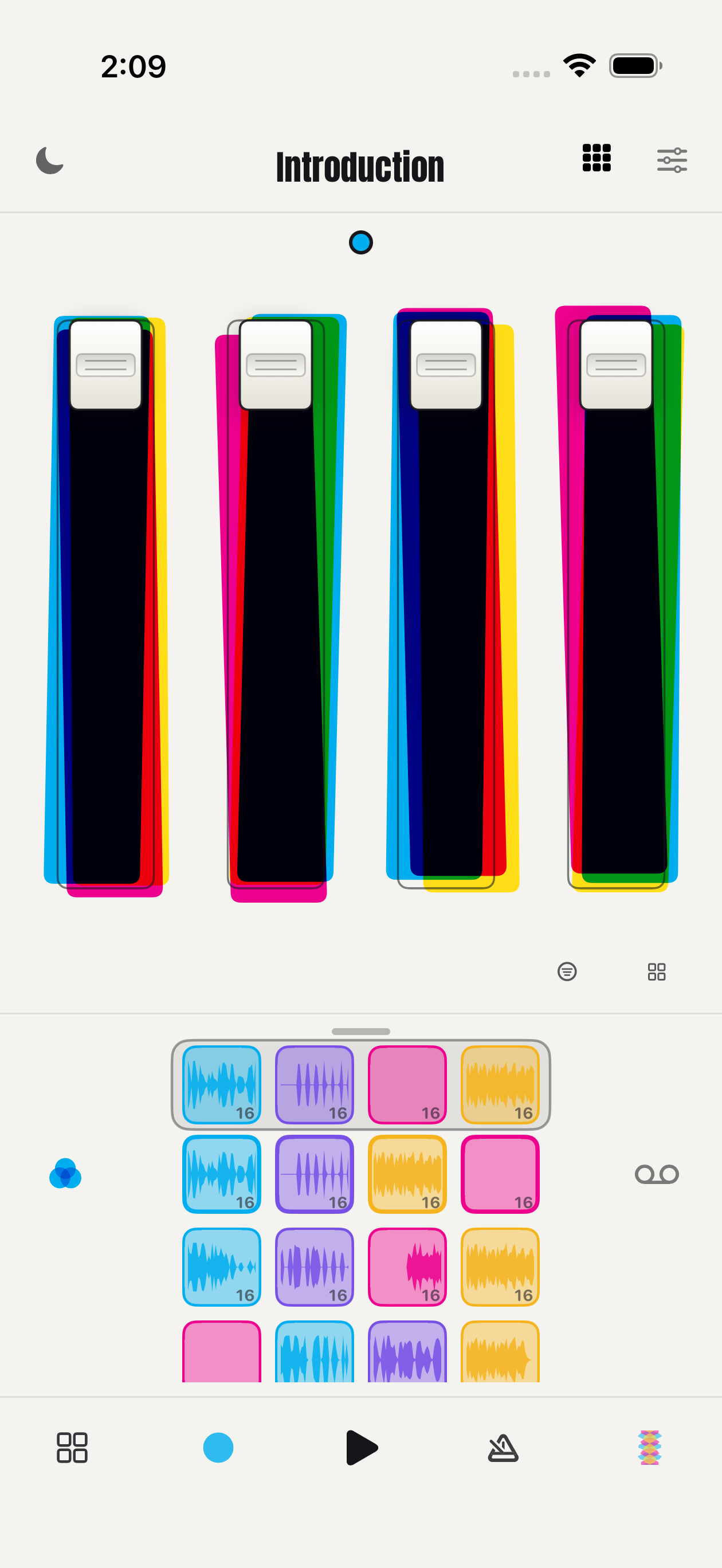
Cellophane Play: four faders above the rows of sample slots.
2 LIVING COLOR
The colored layers move with the instrument. The recording here shows Cellophane’s own Play surface in motion.
3 THE BENCH
The outlined live row shows the current slots. Browse saved Cels or unique window stacks below it. Scroll to reveal more; the visible rows are not a capacity limit.
Fig. 01 / Play: the performance surface.Screen layout can vary with device and view.
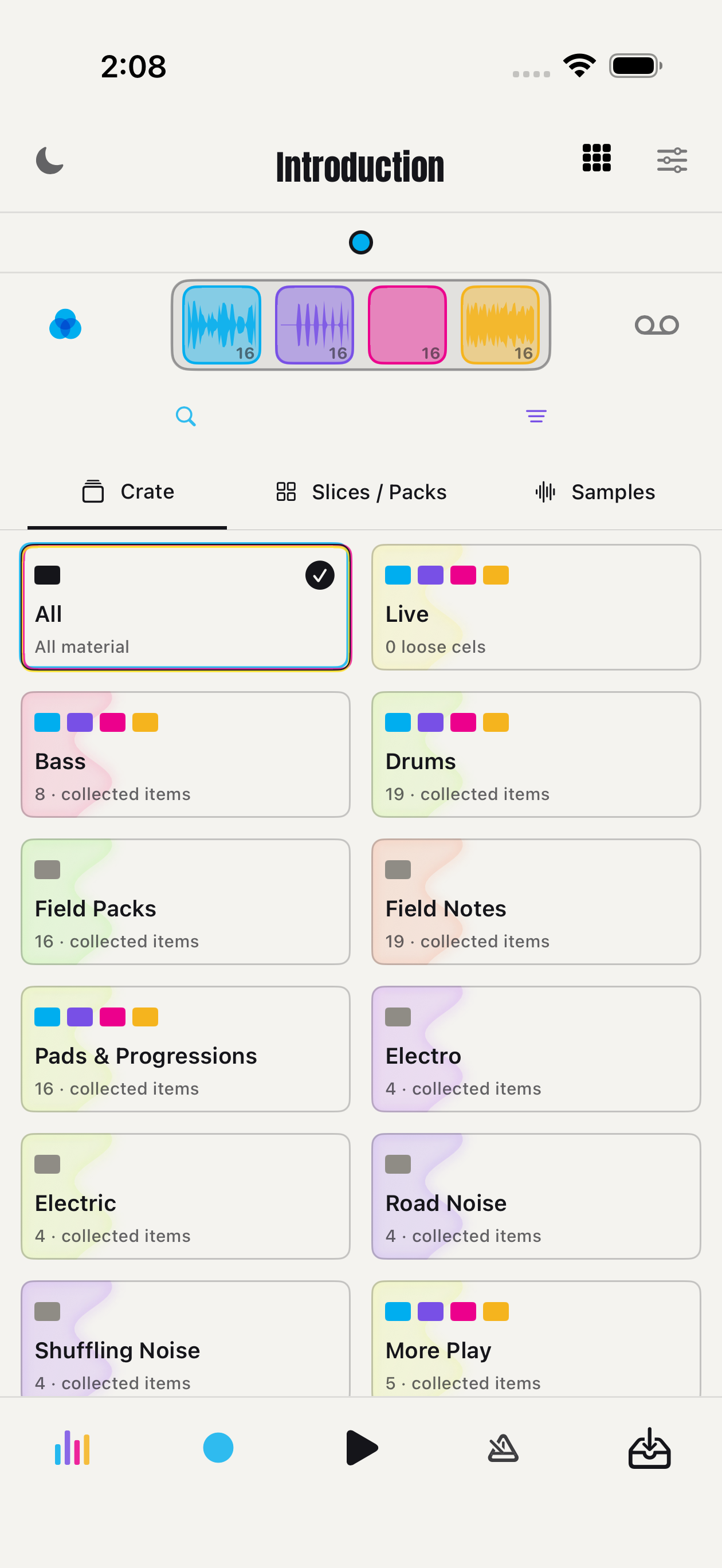
A crate is a collection of material. Browse the included songs and sample packs, or use Import to bring in audio from Files. Start with a Cel or a track—a song or pack loaded for playing.
Choose material from your Crate.
2
Load it and press Play.
Use the item’s load action, return to Play and tap the triangle in the footer. Your loaded material appears in the rows below the faders.
Play is in the center of the footer.
3
Ride one fader.
Drag a fader up or down to change the balance. Double-tap it to mute and unmute without losing the level you chose.
Up or down for level. Double-tap for mute.
4
Explore the other rows.
Scroll the bench to see more material. Rows can be Cels or a track’s window stacks. Swipe across the Play surface to change focus and work with another part of the performance.
The visible rows are a view into the performance, not a capacity limit.
Make room.
Try leaving a part out. A quiet slot can change the feel of everything around it.
Keep the setup.
Use Save Set when you want to return to the arrangement of sounds. A Set stays editable; a Recording is the audio you made.
A window selects a range in one sample. A slice is a set of windows from the same pool of samples—even a single window. Use aligned windows for a section of a song, or choose different phrases from unrelated sounds in a pack. A Cel is a row in the bench or a particular grouping of slice windows.
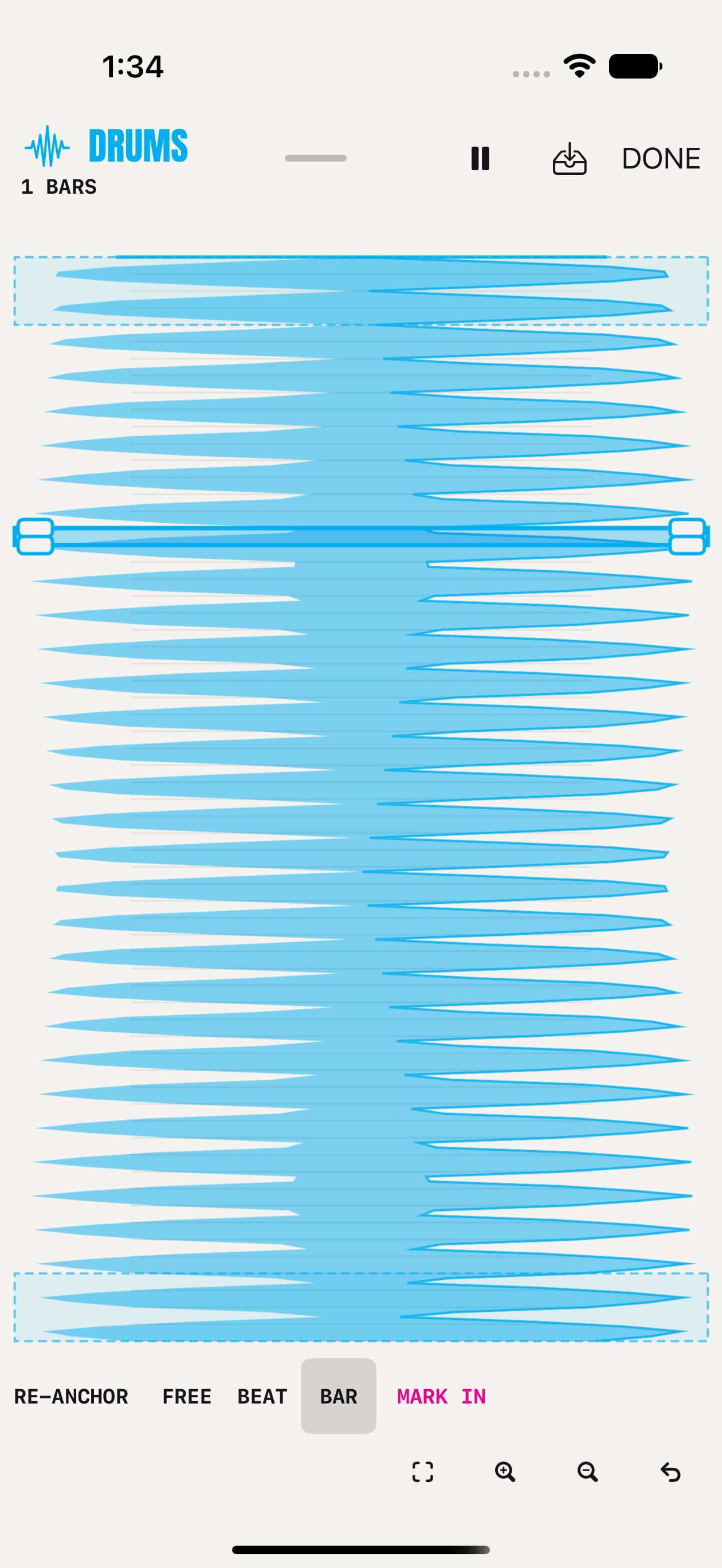
Windows in PlayA track’s windows stay together in the bench.The waveformWork with the sound at a closer scale.
Choose the window.
Open Slice from the footer. In the song’s window map, tap an empty area of a stem waveform to add a window; tap an existing window to select it. Use its length badge to open the closer editor and adjust the range. In the four-wave focused slicing surface, position the loop and hold the waveform to cut the selected phrase.
Save the combination.
Select the windows you want, audition the parts, then use Save cel. The saved Cel appears in the Slice bench, which opens to show it. That row groups four windows because they fit the playing surface; unused slots can stay empty. The slice itself is not limited to four windows.
Open the bench
Tap the handle above the live row, or swipe it up, to reveal saved Cels. Swipe down to collapse it and give the waves more room.
Cels or Windows
Use the bench’s view control to Melt to windows or Gather into Cels. Windows shows each unique cut once; Cels preserves saved combinations. Switching views does not change playback.
This session or all
The Slice scope filter is available in Play and Slice. Choose This session to focus on new slices, or All slices to see earlier work too. This hides material from view; it does not delete it or stop playing audio.
A box’s number is its length in bars. Short loops can show a fraction; FULL means the whole source. It is not a zero-length loop. If an imported loop feels off, use Set / review timing to check its tempo and first downbeat.
Saving a Cel and placing sounds into Play are separate actions. Use the Cel or sample’s drag handle to place it in the Play bench.
Organize a pack however you like: short prepared loops, field recordings, instrument recordings, or other samples. Add stem-type tags when they help. Review available tempo and bar estimates, the downbeat, loop length, and stretching options before playing sounds together. Start with the sound; use timing controls to make it fit.
Fig. 04 / Crate: browse, organize and return to your material.
A SOUND. A GROUP. A WHOLE PERFORMANCE.
Crate is where you browse and manage your material. Collections organize related items; putting things in a Collection does not make them play together.
Bring in your sounds
Four stems
Import four stems brings in already-separated Drums, Bass, Vocals and Other. Use files exported from the same starting point, then check the source tempo and first downbeat.
Samples
Use Import sample folder for a group, or Choose individual samples. Analysis is optional. Review timing before relying on an imported loop’s bar grid.
Starter sounds
Load included starter pack loads the material supplied with Cellophane.
Shared pack
Open Have a shared pack? → Open package or ZIP and choose a compatible Cellophane package from Files. Review it, then tap Import package.
For the vocabulary behind these views, return to the index of terms.
A set of windows from the same pool of samples, including a single window. A Slice can be generic or focused on a section of a separated song; it does not require four parts.
The starting material: individual samples, a sample pack, or a song separated into stems. These provide the pool of samples from which you choose windows.
A stem is one separated part of a song: Drums, Bass, Vocals or Other. A lane is a position on the screen. A sound’s type and its slot are different things.